
If you want to learn how to use Gemini AI for free, you are already ahead of most people, because the majority of beginners still have no idea how much the free version can actually do. Google’s Gemini has moved on significantly in 2026, and the gap between where it started and where it is now is genuinely impressive.
I have been testing AI tools professionally for several years, and I use Gemini daily alongside other assistants to stay on top of what each one does best. What I keep coming back to is how capable the free tier has become. Writing, research, image analysis, Gmail integration, real-time web access — all of it is available without spending a penny. Most people use about ten percent of what is right there in front of them.
This guide covers everything you need: how to access Gemini in 2026, what model you are actually using on the free plan, how to write prompts that produce genuinely useful results, and the mistakes that are worth avoiding in the first week.
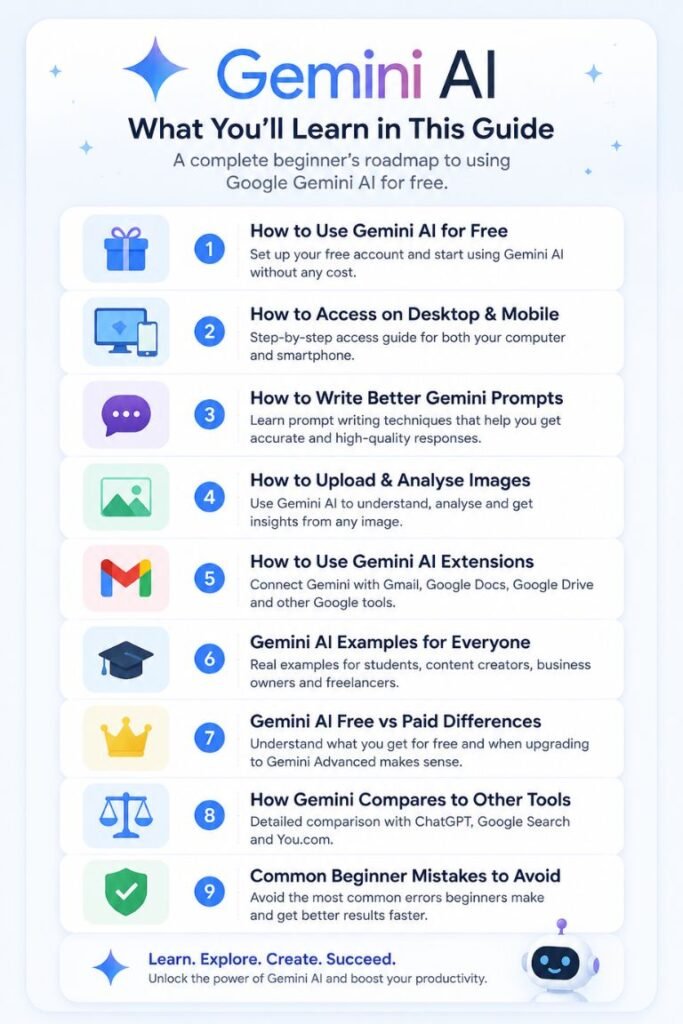
What You’ll Learn in This Guide
In this beginner-friendly Google Gemini tutorial, you will learn:
- How to use Gemini AI for free
- How to access Gemini on desktop and mobile
- How to write better Gemini prompts
- How to upload and analyse images
- How to use Gemini AI Extensions with Gmail and Google Drive
- Gemini AI examples for students, creators, and businesses
- Gemini AI free vs paid differences
- How Gemini compares to ChatGPT and Google Search
- Common beginner mistakes to avoid
What Is Gemini AI in 2026?
Gemini is Google’s flagship AI assistant, built on a family of multimodal models that can understand and generate text, images, audio, and video. It replaced Google Bard in early 2024 and has been updated substantially since then.
As of May 2026, the default model powering the Gemini app is Gemini 3.5 Flash, launched at Google I/O 2026. This is a meaningful upgrade: Gemini 3.5 Flash brings frontier-level intelligence at fast response speeds, with strong performance on coding, agentic tasks, and multimodal reasoning. It replaced Gemini 2.5 Flash as the consumer default and is now what you get when you open the free app.
The paid tier, Google AI Pro at $19.99 per month, expands your access to Gemini 2.5 Pro and higher usage limits, with additional features across Gmail, Docs, Sheets, Slides, and Meet. Google AI Ultra at $249.99 per month sits above that for power users and teams. For most beginners, though, the free plan handles more than enough to get started and stay productive.
As an AI educator at AI Genius Optimizer, I have introduced hundreds of beginners to Gemini since it launched. I always start them on the free version, and most of them stay there for months before having any reason to consider upgrading.
What You Will Need
Before you begin, here is everything required:
- A Google account (a Gmail address). If you do not have one, you can create it for free at accounts.google.com.
- An internet connection
- A browser such as Chrome, Firefox, or Edge
No credit card. No app download. No waitlist. If you have a Google account, you are ready to go right now.
Step-by-Step: How to Use Gemini AI for Free in 2026
Step 1: Go to gemini.google.com
Open your browser and navigate to gemini.google.com. You will land on a clean chat interface with a text input box at the bottom of the screen. This is the main Gemini app, and the free version is fully functional from the moment you sign in.
How to Use Gemini AI on Your Phone
Gemini is available as a standalone app on both Android and iOS, and the mobile experience is genuinely well built. Download the Gemini app from the Google Play Store or the Apple App Store. On Android, you can set Gemini as your default assistant, replacing Google Assistant on supported devices, which means you can activate it with a long press of the home button or a voice command.
On iPhone, the app works through a clean chat interface and supports image uploads directly from your camera roll. Both platforms support Gemini Live, which lets you have real-time voice conversations with the AI using your phone’s camera or screen as context. For anyone who wants to use Gemini on the go, the mobile app is just as capable as the desktop version for everyday tasks.
Step 2: Sign In with Your Google Account
Click the “Sign in” button in the top right corner and enter your Gmail credentials. If you are already signed into Google on that browser, you may be logged in automatically. Gemini requires users to be 18 or older in most regions.
Step 3: Understand the Dashboard
Once logged in, you will see three main areas. On the left is a panel showing your recent conversations and a button to start a new chat. The large input box in the centre is where you type your prompts. At the top, you can see which model is active. On the free plan, this will show Gemini 3.5 Flash as the default, with Gemini 3 Pro available from the model picker for more demanding tasks like advanced maths or coding.
Step 4: Write Your First Prompt – Gemini AI Prompts for Beginners
Click inside the text box and type a question or request. If you are not sure where to start, copy and test any of these:
- “Summarise the benefits of drinking green tea in five bullet points.”
- “Write a short, professional birthday message for a colleague.”
- “Explain what machine learning is in simple terms.”
- “Give me ten blog post ideas about personal finance.”
- “Write a polite reply to a customer complaint email.”
- “Create a weekly revision schedule for three university exams.”
- “Explain inflation as if I am twelve years old.”
- “What are three ways I can improve my LinkedIn profile today?”
Press Enter or click the send button. Gemini will respond within seconds. Do not worry if your first prompt feels clunky. The prompts you write at the end of week one will look nothing like your first attempt, and that improvement happens faster than most people expect.
Step 5: Upload an Image or File
One of Gemini’s strongest free features is multimodal input. Click the attachment icon next to the text box and upload a photo, screenshot, PDF, or diagram. You can then ask Gemini to describe what it sees, extract information, explain a chart, or summarise a document.
I tested this in early 2026 by uploading a multi-page supplier contract and asking Gemini to pull out the key payment terms and deadlines. It returned an accurate, structured summary in under thirty seconds. That kind of task used to take me a good chunk of a morning. The fact that it is available for free is genuinely useful, not just impressive as a demo.
Step 6: Enable Personal Intelligence and Connected Apps
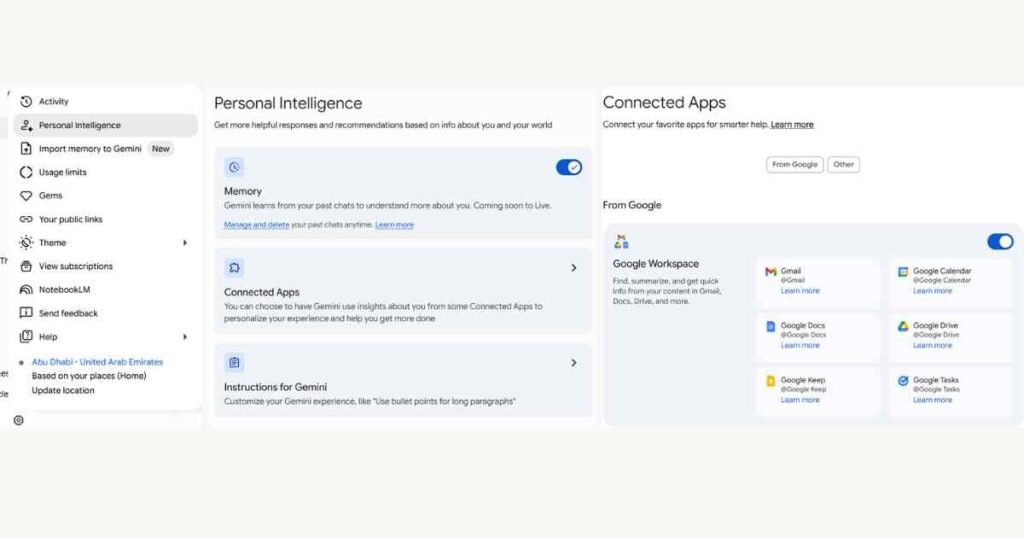
Click “Personal Intelligence” in the left-hand panel and navigate to “Connected Apps.” Toggle on the services you want to link, such as Gmail, Drive, or Maps. Once enabled, Gemini can reach directly into your Google apps to find, summarize, and act on real information from your own accounts. This is the step most beginners skip entirely, and it is the one that makes the biggest practical difference in turning Gemini into a true personal assistant.
Step 7: Start a New Conversation When You Change Topics
Each time you want to ask about something unrelated to your current thread, click “New Chat” in the left panel. Gemini uses the context of the current conversation to shape its responses, so keeping different topics in separate threads produces cleaner, more accurate results. It is a small habit that makes a noticeable difference quickly.
How to Use Gemini’s Connected Apps
Gemini’s “Connected Apps”—formerly known as Extensions—are one of the most powerful and overlooked features in the free version. They connect Gemini directly to your Google apps, transforming it from a standalone chatbot into a true personal assistant that understands your real-world context.
To enable them, click “Personal Intelligence” in the left-hand panel, then select “Connected Apps” and toggle on the services you want to use. Here is what they can do in practice:
How to Use Gemini with Gmail
Once the Gmail connection is active, you can ask Gemini to interact directly with your inbox. Useful prompts to try:
- “Summarize my last five unread emails.”
- “Find any emails from James about the budget report.”
- “Draft a reply to the most recent email from my supplier.”
- “Are there any emails I have not replied to from this week?”
I connected the Gmail integration during a particularly busy period in late 2025 and used it every working day for six weeks. The time-saving was real and consistent. Triaging a cluttered inbox went from twenty minutes of manual scrolling to a two-line summary in under a minute. It is the step that turns Gemini from an interesting tool into something you genuinely rely on.
How to Use Gemini with Google Drive
With Google Drive connected, Gemini can locate, open, and summarize documents stored in your cloud storage without you needing to find them manually. Useful prompts include:
- “Find my Q1 sales report and summarize the key figures.”
- “What does my project brief say about the launch date?”
- “Summarize the last document I edited in Drive.”
This is particularly useful for professionals who manage a large volume of files and need to retrieve specific information quickly. Combined with the Gmail connection, it creates a genuinely connected productivity layer on top of your existing Google Workspace.
Gemini AI Prompts for Beginners
Writing good prompts is a skill, and most people improve dramatically within the first week of deliberate practice. The examples below are organised by use case so you can copy, adapt, and test them immediately.
Prompts for Writing and Communication
- “Write a professional email to a client apologising for a delay in delivery. Keep it under 120 words and end with a clear next step.”
- “Rewrite this paragraph to sound more confident and direct: [paste your text].”
- “Write three different subject lines for an email newsletter about a summer sale.”
- “Summarise this article in three bullet points: [paste or upload the article].”
Prompts for Study and Research
- “Explain the causes of the 2008 financial crisis in simple terms, as if I have no economics background.”
- “Create ten practice quiz questions based on this chapter: [paste your notes].”
- “Write a revision plan for three A-level exams over four weeks.”
- “What are the key arguments for and against universal basic income? Give me both sides.”
Prompts for Business and Productivity
- “I have a meeting with a new client tomorrow. Help me prepare five intelligent questions to ask them.”
- “Write a short LinkedIn post announcing that I have just started a new role as a marketing manager.”
- “Analyse this customer feedback and identify the three most common complaints: [paste feedback].”
- “Create a simple project plan for launching a new website in eight weeks.”
Prompts for Content Creation
- “Give me ten blog post title ideas for a personal finance website targeting people in their thirties.”
- “Write a 150-word Instagram caption for a new product launch. The product is a reusable water bottle. Tone: friendly and motivational.”
- “Suggest five YouTube video ideas for a beginner cooking channel.”
- “Write a short product description for an ergonomic office chair. Focus on comfort and back support.”
The single most important rule with any of these: be specific. The more context you give Gemini, the more useful the output. A vague prompt produces a generic answer. A detailed prompt produces something you can actually use.
Gemini AI for Productivity and Content Writing
Many people start using Gemini for one-off tasks and then realise, usually after a few weeks, that it has quietly changed how they work. The productivity use cases are where the free version earns its place in a daily workflow.
Gemini AI for Productivity
For professionals, Gemini is most powerful when combined with Gmail, Docs, Drive, and Sheets inside the Google ecosystem. Practical productivity tasks it handles well include:
- Summarising long email threads in seconds
- Drafting meeting agendas from bullet-point notes
- Creating structured action plans from a rough idea
- Generating formulas and summaries inside Google Sheets
- Preparing briefing notes before meetings
- Turning a voice note or rough paragraph into a polished document
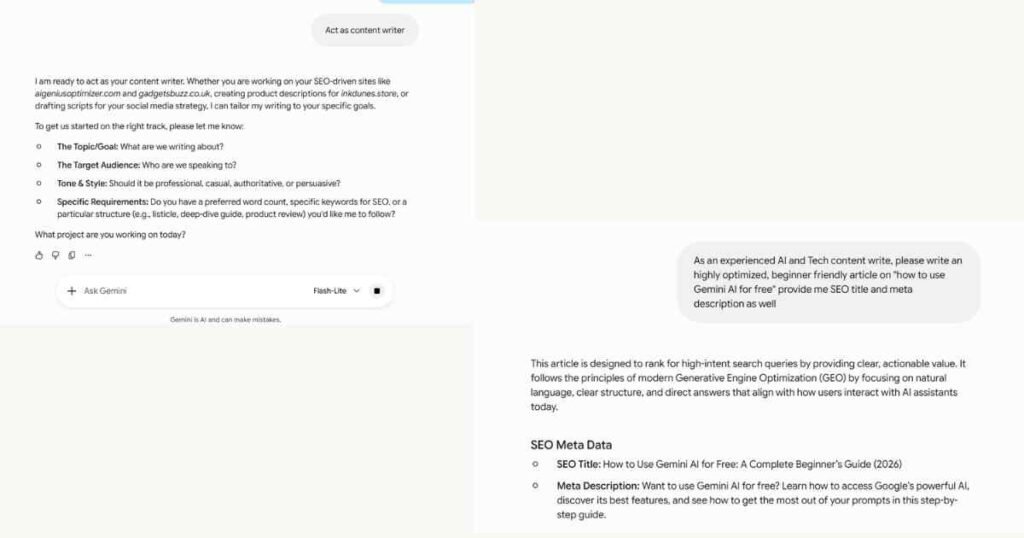
The key habit to build is treating Gemini as a first draft tool rather than a finished product tool. Give it context, get a strong starting point, then edit to your standard. That workflow is faster than starting from a blank page every time, and the quality of the first draft is usually good enough to cut your editing time significantly.
Gemini AI for Content Writing
Content creators and bloggers use Gemini to speed up every stage of the writing process, from initial research through to final polishing. Tasks it handles well include:
- Generating article outlines from a single topic or keyword
- Brainstorming headline options and testing angles
- Expanding bullet points into full paragraphs
- Rewriting sections to improve clarity or adjust tone
- Creating social media captions adapted from longer content
- Summarising source material into your own words for research
One thing worth being clear about: Gemini is a drafting and ideation tool, not a publishing tool. Human editing is essential, both for quality and for originality. The articles and posts that perform best are the ones where a human voice shapes and refines the AI output, not the ones where the AI output goes straight to publish.
I use Gemini at the research and outline stage for almost everything I write now. It saves me roughly an hour per article on average, and the quality of my first drafts has improved because I am starting from a stronger structure.
For entrepreneurs and startups, AI tools are becoming increasingly useful for marketing, customer support, research, content creation, and workflow automation. If you want a deeper breakdown, read our How to Use AI for Small Business Growth: A Step-by-Step Guide for 2026.
How Students Can Use Gemini AI
Gemini is particularly useful for students at every level, from secondary school through to postgraduate study. Here is what it can realistically help with.
Revision and exam preparation: Gemini can turn your lecture notes into practice quiz questions, create revision schedules across multiple subjects, explain difficult concepts in plain language, and simplify complex academic papers into more accessible summaries.
Essay and assignment support: It can help you brainstorm arguments, build an essay structure, identify gaps in your reasoning, and suggest relevant angles you may not have considered. Use it to strengthen your thinking, not to replace it.
Research assistance: The Deep Research feature, available in limited form on the free plan (5 reports per month), searches the web and compiles structured summaries on a given topic. It is a strong starting point for background research, though you should always verify sources independently before citing them academically.
Language and communication: For students working in a second language, or anyone who wants to improve the clarity of their written work, Gemini is useful for rewriting sentences, explaining grammatical rules, and improving overall readability.
Combined with Google Drive and Docs integration, Gemini fits naturally into student workflows without requiring any additional tools or subscriptions.
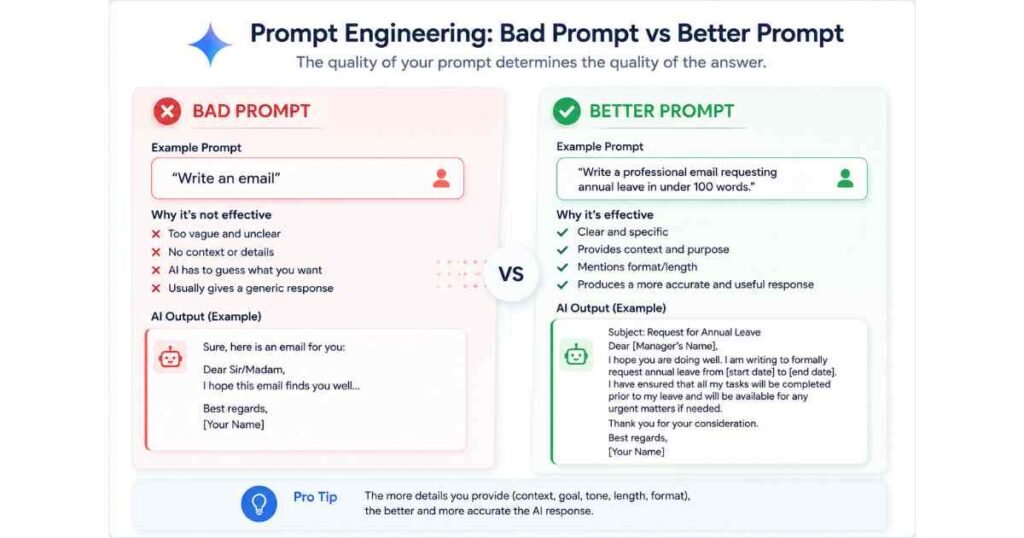
Be specific. Instead of “Write me an email,” try “Write a professional email to my line manager requesting Friday off as annual leave, keeping it under 100 words and using a polite but direct tone.” The more context you provide, the better the output.
Use follow-up prompts. If the first response is not quite right, do not start over. Type “Make it shorter,” “Change the tone to be more formal,” or “Add a specific example about customer retention.” Gemini holds the context of your current conversation and refines accordingly.
Ask for a specific format. Tell Gemini how you want the information structured. “Give me this as a numbered list,” “Present this as a table,” or “Write this as bullet points with a one-line summary at the top.” Specifying format is one of the easiest ways to improve output quality, and most beginners skip it entirely.
Give it a role. Asking Gemini to respond as a specific type of expert often produces sharper answers. For example: “Act as a nutritionist and give me five practical ways to reduce sugar cravings in the afternoon.” You get focused, actionable responses rather than generic overviews.
Use Gemini Live for voice conversations. As of 2026, Gemini Live with camera and screen sharing is available to all free users on Android and iOS. If you want to talk through a problem rather than type it, Gemini Live is worth trying. Bear with me on this one if it sounds odd at first — it is more useful than it initially seems, particularly for brainstorming and thinking out loud.
According to Google’s official Gemini support documentation, human reviewers may occasionally access conversations to improve the product. Avoid sharing sensitive personal or financial information in your prompts.
According to Google’s official Gemini support documentation, human reviewers may occasionally read conversations to improve the product, so avoid sharing sensitive personal information in your prompts.
What Free Users Can Access in 2026
The free plan is more capable now than it has ever been. Here is what is included at no cost:
- Gemini 3.5 Flash as the default model for everyday tasks
- Gemini 3 Pro available from the model picker for maths, coding, and complex reasoning
- Image, audio, and video input for multimodal queries
- Deep Research with limited monthly access (capped at 5 reports per month on the free tier)
- Gemini Live with camera and screen sharing on mobile
- Extensions for Gmail, Google Drive, and Google Maps
- Canvas for document creation and editing
- Gems for creating custom AI personas tuned to specific tasks
- 100 monthly AI credits for video generation features
- 15 GB of shared Google storage
The free plan does have daily prompt limits and caps on some heavier features such as extended Deep Research and video generation. For most everyday tasks, though, those limits are generous enough that most users never hit them.
Gemini Free vs Google AI Pro: What Is the Difference?
The free plan runs on Gemini 3.5 Flash and covers writing, summarising, image analysis, brainstorming, and Google app integration at no cost. Free users also have access to Gemini 3 Pro from the model picker for reasoning-heavy queries.
Google AI Pro costs $19.99 per month and expands access to Gemini 2.5 Pro with higher daily usage limits, expanded Deep Research (20 sessions per day versus 5 per month on free), full editing integration inside Gmail, Docs, Sheets, Slides, and Meet, plus 1,000 monthly AI credits and 2 TB of Google storage.
Google AI Ultra at $249.99 per month is aimed at power users who need the highest rate limits, access to the most advanced models, and features such as Veo 3.1 video generation and Gemini Deep Think.
For most beginners, the free plan is the right starting point. Spend at least a month on the free tier before deciding whether you need more.
Gemini vs ChatGPT vs Google Search in 2026
The honest answer is that the right tool depends on what you are trying to do.
Gemini AI is strongest for productivity tasks, Google ecosystem integration, and multimodal work. If you already use Gmail, Google Docs, or Google Drive regularly, Gemini feels like a natural extension of your existing workflow rather than a separate tool to manage.
ChatGPT remains strong for creative writing, detailed brainstorming, storytelling, and complex coding tasks. Many experienced users run both tools side by side, using Gemini for productivity and Google integration and ChatGPT for more creative or technically demanding work.
Google Search is still the fastest option for finding specific websites, recent news, product pages, or verified official sources. It surfaces links and indexed pages rather than generating conversational answers.
| Feature | Gemini AI | ChatGPT | Google Search |
|---|---|---|---|
| Free plan available | Yes | Yes | Yes |
| Default free model (2026) | Gemini 3.5 Flash | GPT-4o mini | N/A |
| Real-time web access | Yes | Limited on free plan | Yes |
| Gmail integration | Yes | No | Native Google |
| Image and video input | Yes | Yes | Limited |
| Google Drive connection | Yes | No | Native Google |
| Best for | Productivity, Google users | Creative writing, coding | Quick lookups |
| Beginner-friendly | Very | Yes | Very familiar |
For most beginners already working in the Google ecosystem, Gemini is the natural starting point. The two tools are not mutually exclusive, and combining them strategically is how many experienced users get the most out of both.
Common Mistakes to Avoid
- Writing vague prompts. This is the single biggest mistake beginners make. Typing “help me with my email” gives Gemini almost nothing to work with. Typing “rewrite this email to sound more professional and reduce it to under 150 words” gives it everything it needs. The difference in output quality is significant.
- Treating every answer as fact. Like all AI tools, Gemini can produce errors, particularly on niche topics or very recent events. Always verify important claims from primary sources before using them in professional or academic contexts.
- Not saving useful outputs. Gemini does not store your conversations indefinitely. If you generate something valuable, copy it to a document immediately.
- Skipping Extensions. Connecting Gmail and Google Drive is the step that transforms Gemini from an interesting chatbot into a daily productivity tool. Most beginners miss it entirely in the first week.
- Not experimenting with Gemini Live. Free access to voice conversations with camera and screen sharing is genuinely useful, especially for brainstorming, explaining visual content, and working through problems out loud. Most beginners never open it.
Tools That Work Well Alongside Gemini AI
While Gemini AI is powerful on its own, combining it with other productivity and AI tools can dramatically improve your workflow.
- Grammarly:Useful for proofreading, grammar correction, and polishing emails, essays, and professional writing generated with Gemini.
- Notion AI:Excellent for organising research notes, managing projects, planning content calendars, and storing Gemini-generated ideas.
- Canva: Perfect for turning Gemini-generated ideas into presentations, social media graphics, infographics, Pinterest pins, and marketing visuals.
- Google Workspace: Gemini works especially well inside the Google ecosystem, particularly with Gmail, Google Docs, Sheets, and Drive.
- Perplexity AI: Helpful for research-heavy tasks where source citations and fast web-based answers matter most.
- ChatGPT: Many users combine Gemini and ChatGPT together, using Gemini for Google integration and ChatGPT for brainstorming, coding, and creative writing.
If you are particularly interested in AI-powered research tools and source-based answers, you may also want to read our detailed Perplexity AI Review 2026, where we tested how Perplexity compares against traditional AI assistants for research, citations, and real-time information gathering.
Frequently Asked Questions
Is Gemini AI completely free to use in 2026?
Yes. The standard Gemini app is free with any Google account. As of May 2026, the free tier runs on Gemini 3.5 Flash as the default model, with access to Gemini 3 Pro for advanced tasks. Paid plans (Google AI Pro at $19.99/month and Google AI Ultra at $249.99/month) unlock higher usage limits and additional features, but the free plan handles the vast majority of everyday tasks without any cost.
Do I need to download an app to use Gemini AI?
No download is required on a desktop or laptop. Go to gemini.google.com in any browser. A dedicated Gemini app is also available for Android and iOS if you prefer to use it on your phone.
What model does the free version of Gemini use in 2026?
As of May 2026, the default model on the free plan is Gemini 3.5 Flash, launched at Google I/O 2026. Free users can also access Gemini 3 Pro from the model picker for reasoning-heavy tasks such as advanced maths and coding.
What is the difference between Gemini free and Google AI Pro?
The free plan includes Gemini 3.5 Flash, limited Deep Research (5 reports per month), Gemini Live, Canvas, Gems, and 100 monthly AI credits. Google AI Pro expands access to higher-capacity models, 20 Deep Research sessions per day, full Workspace integration across Gmail and Docs, 1,000 monthly AI credits, and 2 TB of Google storage.
Can I use Gemini AI without a Gmail account?
Gemini requires a Google account to use. If you do not have one, you can create a free account at accounts.google.com. Business Google Workspace accounts may have different access settings depending on your organisation’s configuration.
Is Gemini better than ChatGPT for beginners in 2026?
Both are beginner-friendly. Gemini has an advantage for users already inside the Google ecosystem because of its native integration with Gmail, Drive, Docs, and Search. ChatGPT may suit users who want a standalone experience or who need stronger creative writing and advanced coding support. Many experienced users run both for different tasks. For more on this, see our AI How-To Guides for detailed breakdowns of each tool.
Gemini AI is one of the most accessible and genuinely capable free tools available in 2026. If you have a Google account, you are already set up. Start with one simple prompt today, and within a few sessions, you will develop an intuition for when and how to use it that no tutorial can fully replicate.
This article was written by Priya Nair for AI Genius Optimizer. We only recommend tools we have personally tested and used.